Try Osprey in GitHub Codespaces
Run the Osprey demo in your web browser, with nothing to install. GitHub Codespaces gives you a temporary cloud machine running the whole Osprey stack, with synthetic demo data already flowing through it. You won’t need to type any commands.
This is the same demo as Getting Started, for people who’d rather not install Docker. Use it to look around the UI, show Osprey to someone, or check a UI change on a branch.
What you need
- A GitHub account. Codespaces are billed to whoever creates them; see Costs.
- A recent desktop browser: Chrome, Edge, Firefox or Safari.
1. Open it

Click the button above (it’s also on the README). On the next page:
- Branch: leave it on
mainfor the latest version, or pick a branch to try someone’s change. - Machine type: keep 4-core. The 2-core machine doesn’t have enough memory for Osprey.
- Click Create codespace.
If you’ve opened one before, GitHub offers to resume it instead of making a new one. That’s quicker, and keeps your earlier data.
2. Wait
A code editor opens in your browser tab. You can ignore the code. In the bottom half of the window, a terminal shows progress:
- Preparing: the first time, the codespace downloads and builds Osprey’s services. This takes about 10 minutes, or under a minute if the repository has a prebuild ready.
- Starting the Osprey demo: each service comes up in turn, with a green ✓ beside it. This takes 1–3 minutes.
- Osprey is ready: the terminal prints the address of the UI, and the Osprey UI opens in a new browser tab.
If the new tab doesn’t appear (browsers sometimes block it), open the Ports tab next to the terminal, find Osprey UI (5002), and click the globe icon.
3. Use it
The Query page opens empty. Click Submit Query to load the last day of events. (The terminal also prints a link that opens the page with yesterday’s and today’s events already queried.)
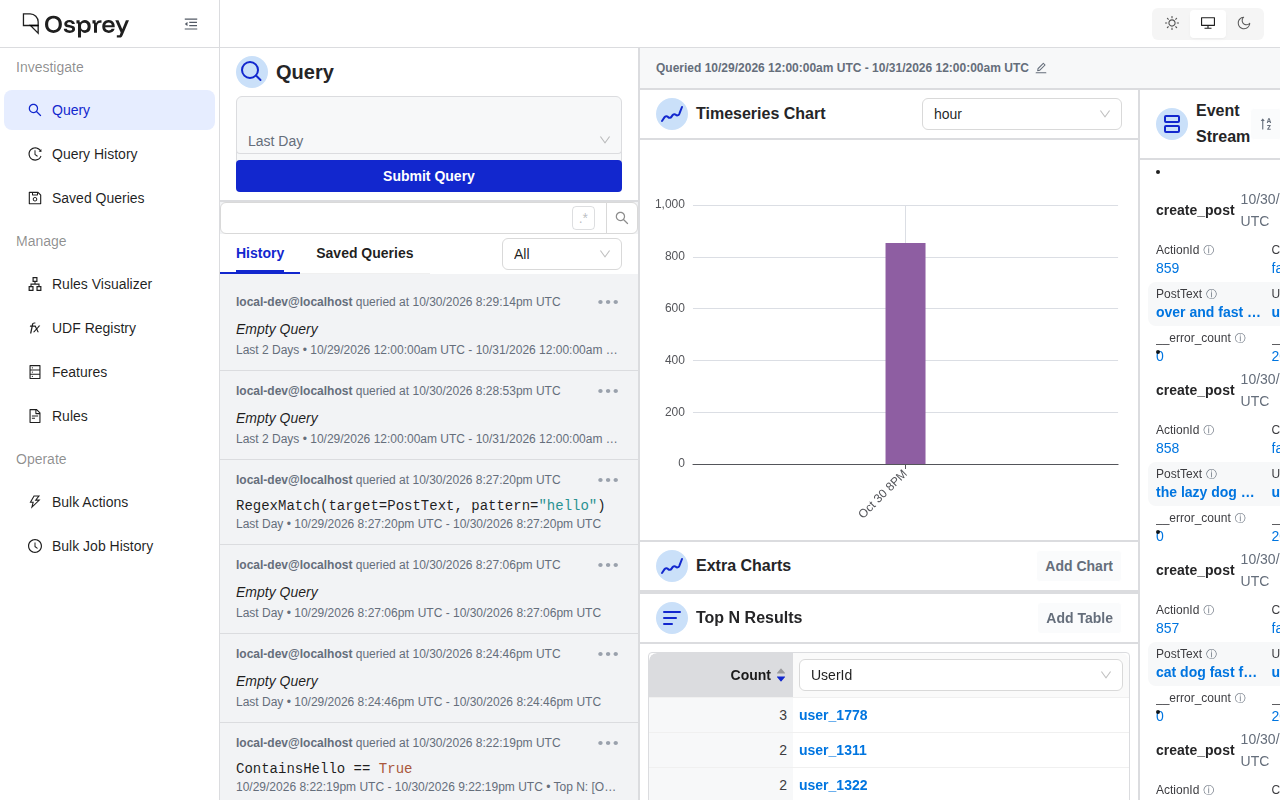
Synthetic posts arrive about once a second. The demo has one rule, ContainsHello: any post containing the word “hello” gets its author banned and labeled meow, so about a third of posts match.
- Watch the event stream on the right. Each card is one post, with what Osprey extracted from it; click See Details for the rule results and effects.
- Filter with a query: type
RegexMatch(target=PostText, pattern="hello")in the query box and click Submit Query to see only the posts the rule matched. - Group with Top N: the link the terminal prints adds a Top N table of
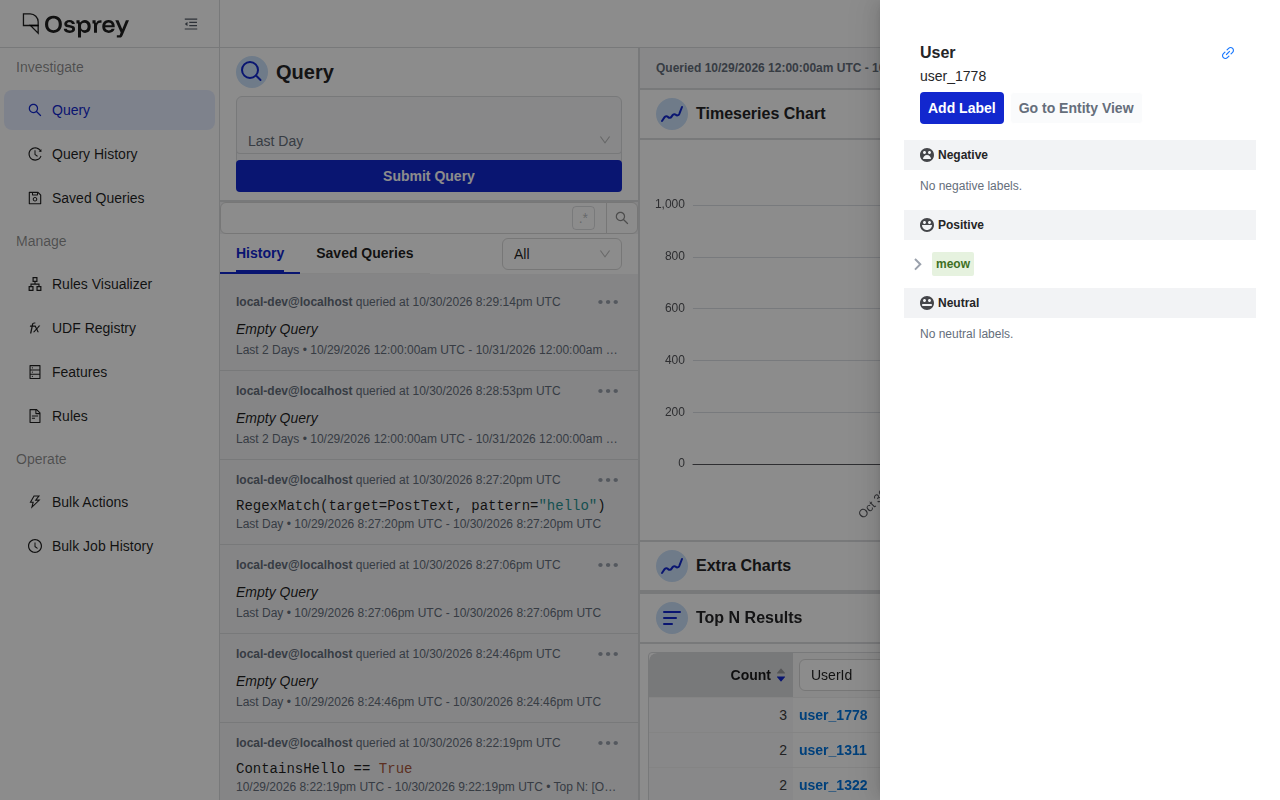
UserIds, showing which synthetic users posted most. To add one yourself, click Add Table under Top N Results and pick a feature. - Look at a user: click a user ID in the Top N table to open a panel with that user’s labels. Users the rule banned are labeled
meow. - Open the Rules Visualizer from the left-hand menu, search for the
meowlabel, and turn on Show Upstream Nodes to see the rule that applies it.
The User Guide covers the rest of the UI. The address of your UI tab is private by default: only your GitHub account can open it, so sharing the link won’t let anyone else in. Leave the port’s visibility in the Ports tab set to Private; if it’s changed to Public, anyone with the link can use your Osprey UI.
4. Stop it
A codespace stops by itself after a period without activity: 30 minutes, unless you’ve changed your Codespaces settings. Typing or using the mouse in the editor tab counts as activity, and so does terminal input or output; using only the Osprey UI tab doesn’t. If you’re presenting from the UI tab for a long time, click into the editor tab now and then, or raise the idle timeout (up to 4 hours) in your settings.
To stop it yourself, go to github.com/codespaces, click ⋯ next to the codespace, and choose Stop codespace.
5. Come back
Open github.com/codespaces and click the codespace’s name. The demo starts again on its own, in a minute or two, and keeps the data from last time.
6. Delete it
When you’re done with it, delete it so it stops using your storage: at github.com/codespaces, click ⋯ → Delete. GitHub also deletes stopped codespaces on its own, by default after 30 days; your settings or your organization’s can make that shorter.
Costs and time limits
Codespaces are billed to the person who creates them, unless an organization pays for its members’ codespaces (ask your admin).
- Personal GitHub accounts include a free monthly allowance: at least 120 core-hours, which is 30 hours on the 4-core machine Osprey uses, and 15 GB of storage. Above that, the 4-core machine costs $0.36 an hour while running.
- A stopped codespace costs nothing per hour but counts towards storage until you delete it.
- Check what you’ve used at github.com/settings/billing.
GitHub’s Codespaces billing page has current prices and limits.
Troubleshooting
The UI tab never opened. Check the terminal: until it says Osprey is ready, the UI isn’t up yet. Once it is, open the Ports tab and click the globe icon next to Osprey UI (5002). If you see a GitHub sign-in page, sign in with the account that created the codespace.
The UI loads, but the charts and event stream are empty. Click Submit Query: the Query page doesn’t run a query until you do. If it’s still empty, Druid (the database behind the charts) may not have ingested events yet; it starts a minute or two after everything else. Wait a couple of minutes and submit again, and check the time range under the query box covers the last hour.
The UI shows “Network Error” or red error messages. A service may have stopped. Press Ctrl+Shift+P (Cmd+Shift+P on a Mac), type Rebuild Container, and choose Codespaces: Rebuild Container. This restarts the demo from scratch, deleting its data.
“This codespace requires a machine with at least 4 cores and 16 GB of RAM”, or no 4-core option. Your account or organization may limit machine types. Ask your organization admin, or create the codespace from a personal account.
The terminal mentions “rate limit” or “toomanyrequests”. Docker Hub, where most of Osprey’s services come from, limits how often one network address can download without signing in. Wait an hour and rebuild the container (as under “Network Error” above), or, if you have a Docker Hub account, add DOCKERHUB_USERNAME and DOCKERHUB_TOKEN (an access token) as Codespaces secrets for the roostorg/osprey repository, then rebuild.
The terminal said “The Osprey demo didn’t start cleanly”. Rebuild the container as above. If it happens again, run docker compose ps -a in the terminal and share the output with the Osprey maintainers in a GitHub issue or on Discord.
I closed the progress terminal. Open a new one from the ☰ menu → Terminal → New Terminal, and run bash .devcontainer/scripts/status.sh to see whether the demo is ready.
For engineers
The configuration lives in .devcontainer/: Docker-in-Docker on a 4-core / 16 GB machine, running docker-compose.yaml with the docker-compose.codespaces.yaml override. The override points the UI at the API through the UI dev server’s /api proxy, so the browser only ever talks to the forwarded port 5002, and turns off the Druid web console. The same configuration works locally with any devcontainer-capable tool, such as VS Code’s Dev Containers extension or the devcontainer CLI:
npx @devcontainers/cli up --workspace-folder .
The container doesn’t include the Python, uv or Node toolchains. For a full development environment, see Local Development.
Running it locally on a host whose kernel lacks legacy iptables support (seen on Linux 7.0), Docker inside the container fails to start with can't initialize iptables table 'nat': the Docker-in-Docker feature sets up the container to use legacy iptables. Switch the container to the nftables backend, restart its Docker daemon, and start the demo again:
sudo update-alternatives --set iptables /usr/sbin/iptables-nft
sudo update-alternatives --set ip6tables /usr/sbin/ip6tables-nft
sudo /usr/local/share/docker-init.sh true
bash .devcontainer/scripts/start.sh
The switch lasts until the container is rebuilt. Codespaces machines aren’t affected.